Getting Started
Prerequisites
- Figma account (free or paid)
- Roblox Studio installed
- HTTP permission: only for Live Mode. Studio asks once whether the FigBloxUI plugin may make HTTP requests; click Allow (you can change it later under Plugins → Manage Plugins). The Experience Settings “Allow HTTP Requests” switch is not needed. ZIP and Code modes work without it.
Step 1: Install the Figma Plugin
- Go to the FigBloxUI Figma Plugin page
- Click “Install”
- The plugin will appear in your Figma plugins list
- Open it and click Start Free Trial (14 Days). Already subscribed? Use Login with Roblox for all modes or Already have a license key? instead
Step 2: Install the Roblox Studio Plugin
- Open FigBloxUI on Roblox Creator Marketplace
- Click “Install”
- The plugin will appear in your Studio toolbar
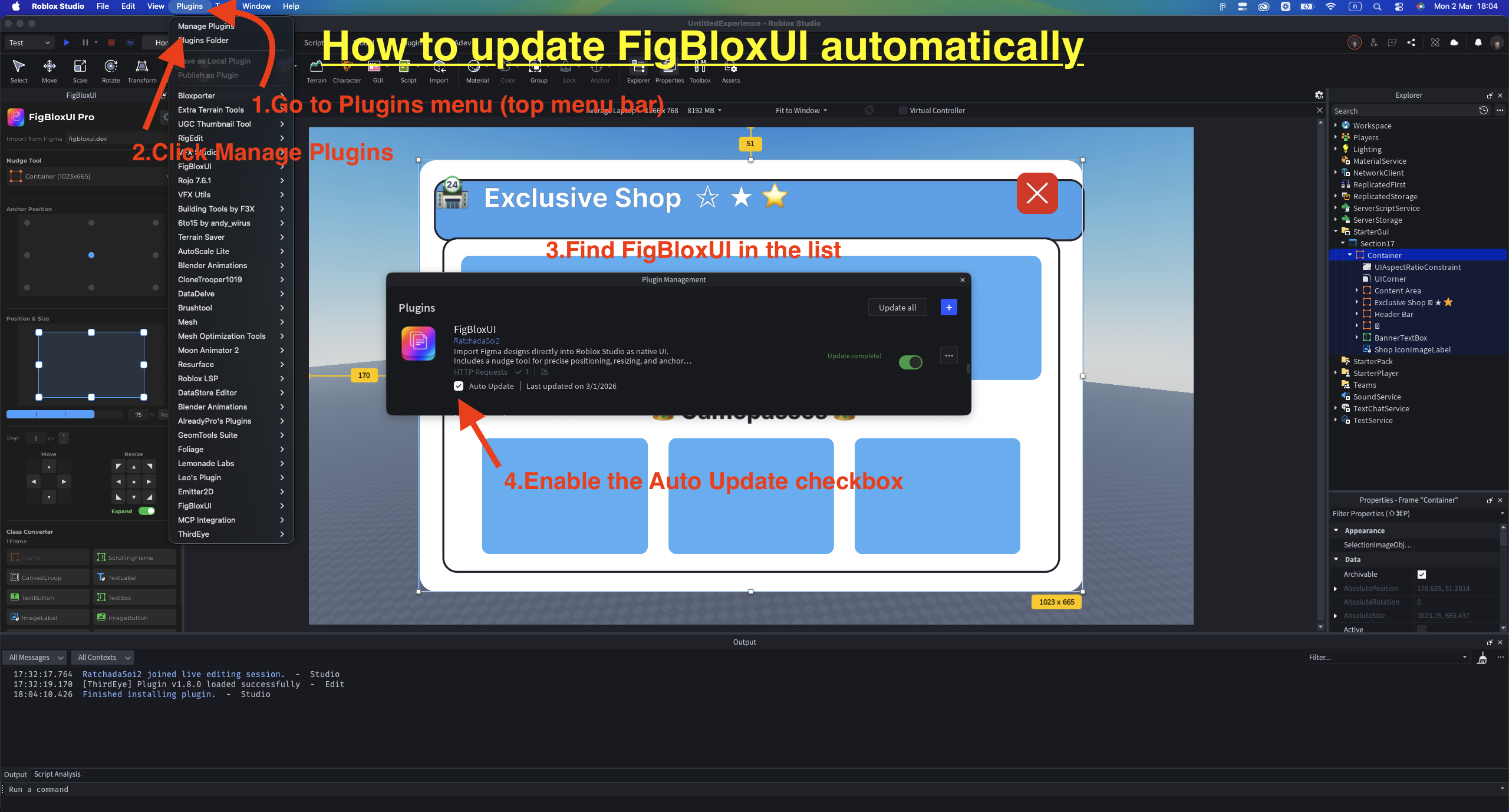
How to Update the Roblox Studio Plugin
- Go to Plugins menu (top menu bar)
- Click Manage Plugins
- Find FigBloxUI in the list
- Enable the Auto Update checkbox
Keep both plugins up to date. Live sends need Studio plugin 3.0.0 or later. Code and ZIP still paste on an older version, and 3.0.0 is what makes everything work, including Separate and Preserve layers in Scaled mode. To check which version you have, open the FigBloxUI panel in Studio and read the version at the bottom of its Settings page.
Native Shadows and Corners
Drop shadows import as UIShadow and individual corner radii as native UICorner properties by default, so you can edit them in Studio. A glow that a layer’s contents cast, for example around an icon or text, arrives as one shadow image behind the layer instead, so it follows their shape as in Figma. No Studio beta feature is needed. To flatten them into images instead (for example, to match Figma’s blur exactly), open Settings in the Figma plugin and turn off Native shadows and corners.
Step 3: Choose Your Export Mode
FigBloxUI has 3 export modes. ZIP Mode is the default, no Roblox login needed.
ZIP Mode (Default, No Login)
- Open the Figma plugin (Plugins → FigBloxUI)
- Select a frame in Figma
- Click “Export ZIP” → Download the ZIP file
- Click “Copy Code”
- Upload images from the ZIP to Roblox with Studio’s Asset Manager
- In Asset Manager: select uploaded images → right-click → Insert
- Images appear in ServerStorage → Loaded
- Open Studio plugin → Go to Paste Code tab
- Paste the code → Plugin auto-scans Loaded folder and matches images
- If not all matched: drag from the Image Gallery below, or click “Scan”
- Click “Import”
Code Mode (Roblox Login)
- Open the Figma plugin → Login with Roblox (plugin auto-switches to Code mode)
- On the Roblox screen, allow FigBloxUI and select your Personal account and any Groups that should own your images
- Select a frame in Figma, then choose the Image owner above the Export Code button (you only choose once; the plugin remembers it)
- Click “Export Code” → Wait for images to upload
- Click “Copy Code”
- Open Studio plugin → Go to Paste Code tab
- Paste the code → All images are already mapped (asset IDs baked in)
- Click “Import”
Live Mode (Real-time)
- Open the Figma plugin → Login with Roblox
- On the Roblox screen, allow FigBloxUI and select your Personal account and any Groups that should own your images
- Open the FigBloxUI panel in Studio and keep it open. It connects automatically while the panel is open (there is no Connect button)
- Switch to Live mode in the Figma plugin and choose the Image owner above the Send to Roblox button
- Select a frame → Click “Send to Roblox”
- UI appears in Studio when the Send finishes. Small designs take seconds, but a large design can take several minutes the first time while its images are prepared and uploaded. The Images panel shows progress, and unchanged images are reused, so later Sends are faster
- Make changes in Figma → Send again → choose Replace to rebuild the ScreenGui, or select only the changed layers before you send to update just those (see the FAQ)
Note: Live Mode needs the FigBloxUI plugin’s HTTP permission in Studio (allow it when Studio asks, or under Plugins → Manage Plugins). The Experience Settings “Allow HTTP Requests” switch is not required.
Quick Comparison
| Live | Code | ZIP | |
|---|---|---|---|
| Roblox Login | Yes | Yes | No |
| Studio Connected | Yes | No | No |
| Image Upload | Automatic (Personal or Group) | Automatic (Personal or Group) | Manual (Asset Manager) |
| HTTP Requests | Required | Not required | Not required |
| Best For | Rapid iteration | Sharing with team | Commission work |
What Gets Converted
| Figma Element | Roblox Instance |
|---|---|
| Frame/Group | Frame |
| Text | TextLabel |
| Vector shapes | ImageLabel (auto-exported as PNG) |
| Image fills | ImageLabel (auto-uploaded) |
| Stacked solid or linear-gradient fills | Layered Frames |
| Buttons (detected) | TextButton / ImageButton |
| Auto Layout | UIListLayout + UIPadding |
| Evenly spaced cards in a scroll area | UIGridLayout |
| Corner Radius | UICorner |
| Individual Corner Radius | UICorner per-corner properties |
| Stroke | UIStroke |
| Linear Gradient | UIGradient |
| Drop Shadow | UIShadow (a glow cast by a layer’s contents: a shadow image behind it) |
| Hard text drop shadow | TextLabel copy behind the text |