Troubleshooting
Studio can’t connect / imports never arrive
Roblox Studio Plugin
”Studio is blocking this plugin’s HTTP requests”
Studio asks once whether FigBloxUI may make HTTP requests. If it was denied, allow it under Plugins → Manage Plugins → FigBloxUI. The panel connects on its own once it’s allowed.
You don’t need to publish your game or turn on Allow HTTP Requests in Experience Settings. That switch doesn’t affect FigBloxUI.
Creator Store shows 404
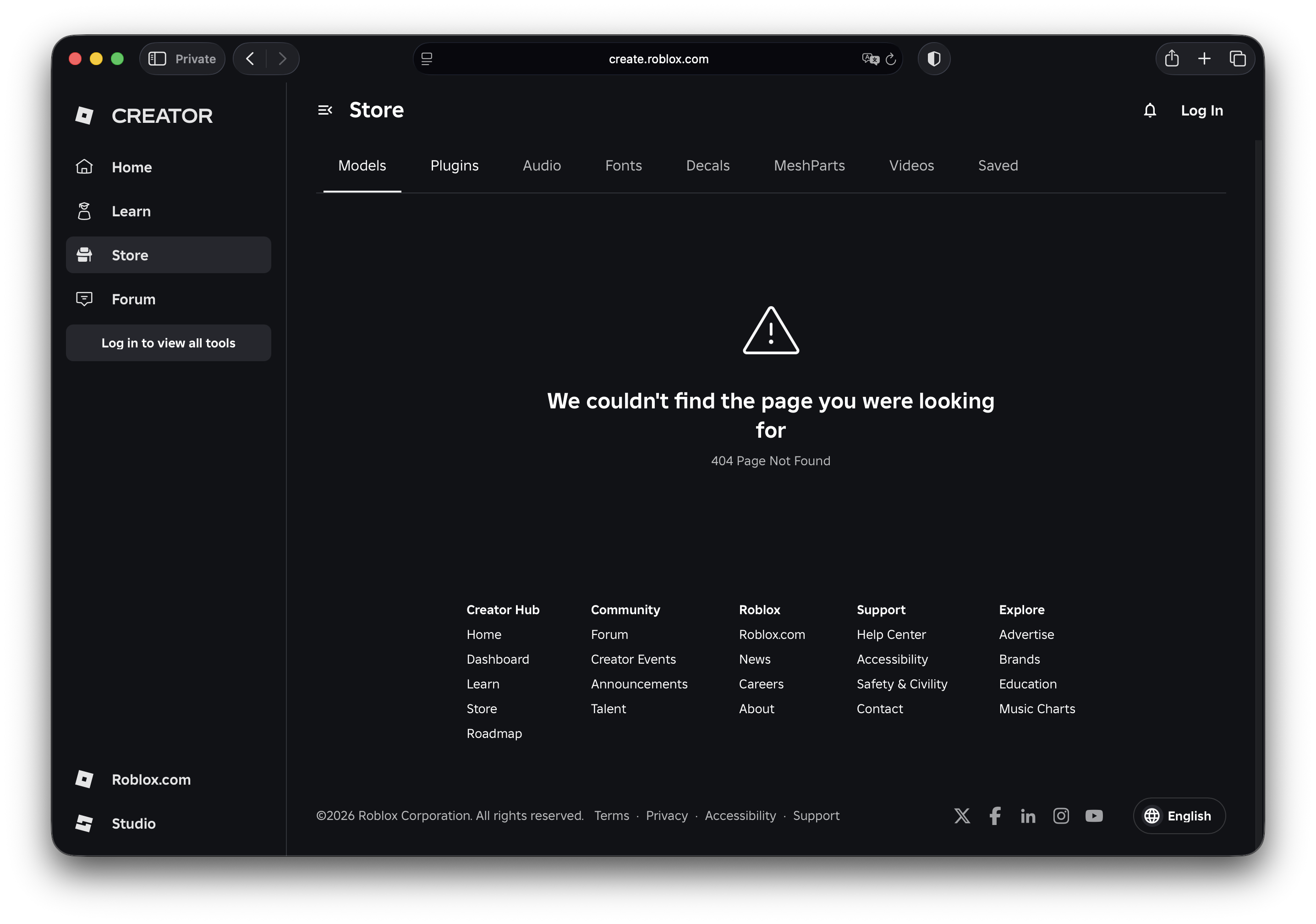
If you see a 404 page when opening the Roblox Studio plugin link, this is temporary. The developer has published a new version and it’s currently under Roblox review. Please wait and check back later. It usually takes around 30 minutes, but may vary depending on Roblox’s review queue.
Plugin doesn’t appear in toolbar
- Check that the plugin is installed (Plugins → Manage Plugins)
- Try restarting Roblox Studio
- Check the Output window for any errors
Import doesn’t appear
- Keep the FigBloxUI panel open in Studio. It receives imports while open
- Make sure the Studio plugin shows “Connected” (green dot)
- Check that you’re logged into the same Roblox account in both Figma plugin and Studio
- Try sending again from the Figma plugin
Asset Manager inserts images into Workspace instead of ServerStorage
On some Studio versions the Asset Manager’s Insert drops uploaded images directly into Workspace root rather than creating a ServerStorage > Loaded folder. The plugin now handles this automatically. Scan searches ServerStorage, Workspace, and ReplicatedStorage and finds images wherever they landed. If Scan still reports 0 matches, quitting and reopening Roblox Studio usually clears up Asset Manager flakiness.
Studio plugin v3.0.0 is required
The FigBloxUI panel in Studio shows its version when it starts, for example “FigBloxUI v3.0.0 started”.
Live needs 3.0.0. An older panel is turned away with a message telling you to update, and nothing arrives in Studio until you do.
Code and ZIP still paste on an older panel. Update to 3.0.0 for all of this to work:
- Separate and Preserve layers imports in Scaled mode don’t scale to fit the screen
- Choosing Keep Both twice for the same frame replaces the first copy instead of adding another
- Output may show “[FigBloxUI] Unrecognized property: StartCorner” (harmless)
Update the Studio plugin, reopen the FigBloxUI panel, and send again.
Images are blank after a Group upload, and Output mentions access permission
Images uploaded to a Group only show in experiences that Group owns. When you import into a place owned by your own account, the ScreenGui builds correctly and the plugin reports success, but each ImageLabel stays blank and Studio’s Output prints one line per image saying the experience does not have access permission to that asset ID, with a link to share access. Studio asks you to share access once: click that line and the images appear.
To avoid it, choose the Image owner that matches where the game lives before your first Send, or test Group-owned images in a place the Group owns. Switching the owner later means sending again, because FigBloxUI uploads a new copy of every image for the new owner.
”This partial import … Use full Replace”
You sent part of a design into UI you imported earlier, and the structure around it has changed, for example layers moving into or out of a mask clip with Separate or Preserve layers. Studio stops before changing anything, so your existing UI stays as it was. Select the whole frame, send it again and choose Replace.
”This Send lists … twice under the same parent”
FigBloxUI found one Figma layer listed twice in the same place, so Studio builds a duplicate. In Live mode the Figma plugin log shows this warning, and Studio’s Output shows a matching “[FigBloxUI] This import lists … twice” line. The import still finishes: delete the extra copy in Studio, and send us the section with Report bug in the Structure tab so we can find the cause.
Figma Plugin
”Select a frame first”
You need to select a frame in Figma before clicking Send. FigBloxUI needs a root frame to export.
Images not uploading
- Choose an image owner. In Code and Live mode, pick Personal or one of your Groups in the Image owner menu above the export button. There is no default, so everyone chooses once. Until you do, the plugin says “Choose Personal or a Group as the image owner before sending.”
- The owner you want isn’t listed. Click Manage next to Image owner and select Personal or the Group on the Roblox screen. Only owners you select there appear in the menu. Only Groups you own appear on the Roblox screen; a Group you are a member or admin of will not be listed.
- Image upload permission is missing. Click Logout, log in again, and allow image upload access on the Roblox screen.
- Some images failed. Send again. Only the failed images are retried, and images that already uploaded are reused.
- Large images take longer. The Images panel fills in as each image is prepared.
”This section needs more than 1000 images”
One Send or export can carry up to 1,000 different images. Copies of the same image count once, and the plugin tells you as soon as a design goes over, before anything uploads. To fit:
- Send a smaller section. Select one screen or panel instead of the whole page, and send the rest separately.
- Set Artwork layers back to Automatic. Separate usually exports more images, and Preserve layers many more.
- In Automatic or Separate, export a busy group as one image. Add the
_imagesuffix to the group’s name, for exampleBackground_image. Preserve layers usually keeps the layers of such a group separate, so the suffix saves images only in Automatic and Separate.
Uploading to a Group fails
A Group upload needs the Group selected on the Roblox screen, and a Group role with the Create and configure development items permission.
- “This Group is not authorized for image upload”: click Manage next to Image owner and select the Group on the Roblox screen.
- “Roblox denied asset creation for this Group”: ask the Group owner or a role admin to give your role the Create and configure development items permission, then send again.
- “The image owner selected in the plugin is no longer valid”: click Manage, pick Personal or a Group again, then send again.
- “Images already uploaded to your Personal account cannot be moved into a Group”: send again with the Group selected. FigBloxUI uploads new copies owned by the Group.
The first time you send to a different image owner, FigBloxUI uploads new copies of your images for that owner, and Roblox reviews each copy again.
”FigBloxUI now verifies your Roblox connection differently”
FigBloxUI changed how it checks your Roblox login, so everyone reconnects Roblox once after this update. Until you do, Code and Live exports stop with this message, or with “This window’s Roblox login has ended” or “Reconnect Roblox once with Manage to load authorized image owners”. ZIP export keeps working.
- Close and reopen FigBloxUI in Figma so the latest version loads.
- In Code or Live mode, click Manage next to Image owner and finish the Roblox screen. Clicking Logout and then Login with Roblox works too.
- Choose an Image owner (see Images not uploading) and send again.
Your license and the images you already uploaded are not affected.
”This window’s Roblox login has ended”
This usually means FigBloxUI is open in more than one Figma file. When you log in again or press Manage in one window, the others pick up that login by themselves the next time they send, and the log says “Picked up the Roblox login from another FigBloxUI window.” After a Logout in another window, or a login with a different Roblox account, a window shows this message instead: click Logout, then Login with Roblox in that window, and send again. Your license and the images you already uploaded are not affected.
Trial expired
After 14 days, you’ll need a paid subscription. You can pay with a credit card (click “Subscribe” in the plugin) or with Robux via the FigBloxUI Store on Roblox.
Subscribed with Robux but still see “Trial ended”? Click Login with Roblox for all modes and log in with the Roblox account that bought the subscription. If you use more than one Figma account, log in with that Roblox account on each one to get Pro there too, in any export mode.
Image rejected by Roblox / account moderated
Roblox moderates every uploaded image (whether FigBloxUI auto-uploads it or you upload it manually via Asset Manager) and false positives happen, especially with textures and decorative patterns. See Image Moderation & Appeals for the full guide and an appeal template.
A rotated element is cut off at the edge of its frame
Since August 2026, Roblox clips rotated elements to their parent’s bounds whenever the parent has ClipsDescendants on, the same way Figma clips them. Before that change rotated decorations could poke outside a clipped frame in Roblox even though Figma cut them off, so an import that used to show an overflowing rotated element may now match Figma and look “cut”. This is a Roblox engine change, not something the import does. If you want the element to overflow, turn off Clip content on the parent frame in Figma and re-import, or set ClipsDescendants to false on that frame in Studio. Details in Roblox’s announcement; the temporary opt-out property is removed in November 2026.
A border at the right or bottom of a clipped frame disappears on some screens
On screens scaled by 125% or 150%, Roblox can clip a frame’s content a pixel or two short of its right and bottom edges, so a border on a layer that touches those edges is trimmed, which Figma never does.
FigBloxUI imports such a frame with its clip off when the clip would hide nothing, and also when it would hide only a glow (a drop shadow or blur reaching past the frame) while a border touches the right or bottom edge. The borders then stay whole, and the glow shows a little further than in Figma, where the frame cuts it. The Structure tab adds a check on the frame that names the layers whose borders stay whole.
If the clip hides real content past the edge, such as an image larger than the frame, it stays on, and Structure adds a check that names the layers whose border can be trimmed. To fix that, add 2 px of padding inside the frame so those layers sit clear of its right and bottom edges, or turn off Clip content on the frame in Figma and send again.
ScrollingFrame imports but doesn’t scroll
Scrolling only happens when the canvas is larger than the frame. Check these in order:
- The content still fits. If everything sits inside the frame, there is nothing to scroll yet. For auto-layout lists and grids, and for evenly spaced cards in a scrolling frame, the canvas grows automatically as you add more items.
- The frame is taller than its visual panel. A ScrollingFrame clips to its own bounds, not to the artwork behind it. If the Structure tab shows “Scroll area extends beyond …”, click Fix on that row to fit the scroll area to the panel (Reset undoes it, and your Figma layer isn’t resized). Otherwise resize the frame in Figma to match the window you want visible, then re-export.
- Repeat groups need an explicit opt-in. Add a
_ScrollingFramesuffix (or set prototype Overflow) on the Repeat group itself so the rows hidden behind a mask are kept as scrollable content.
Text inside a scrolling list looks blurry
New imports keep a rounded scrolling list sharp. Its clip is a plain Frame, usually named Scroll mask, so the text inside is drawn at full resolution on every graphics setting. A Frame clips with square corners, so content that reaches into a rounded corner shows square there. The Structure tab marks the scrolling frame (or a clipping frame with a drop shadow) when that can happen. Keep the content at least a corner radius away from the edges to avoid it.
An older import may still hold that clip in a CanvasGroup. Roblox draws everything inside a CanvasGroup at a lower resolution on lower graphics settings or when the device is short of memory, so text there can look blurry or pixelated, even in Play. A scrolling frame whose first layer is a mask (rounded or circular), masks in Separate and Preserve layers, and groups you name with _canvas use a CanvasGroup too.
To fix it, select the CanvasGroup in the Explorer and click Frame in the FigBloxUI plugin’s Class Converter. The list still scrolls and clips, but the clip corners become square, which is hard to see when the rows sit inside the panel. Or set the scrolling frame’s corner radius to 0 in Figma, keep the rounded corners on the panel behind it, and send again. To update an older import to the new clip, send the whole design again and choose Replace.
Connection Issues
Plugin shows “Offline mode”
The FigBloxUI server may be temporarily unavailable. The plugin will retry automatically.
Slow imports
The first send of a design is the slow one: every new image has to upload to Roblox and pass moderation before it gets an asset id. Sending the same design again is much faster, images that haven’t changed skip the upload entirely.
Separate and Preserve layers usually export more images than Automatic, so a large layered design can take several minutes. Blend modes also make the first Send longer: each blended layer is rendered up to two more times over what is behind it so its colors match Figma, and in Separate and Preserve layers these renders can take most of the Send. A glow that arrives as a shadow image is rendered twice the first time too. Sending again reuses them. For a faster send, set Artwork layers back to Automatic.
Upload time also depends on:
- Number and size of images
- Roblox API response time
- Your internet connection
Tip: The Images panel fills in as each image is prepared. Click ✕ on a card to skip an image you don’t need, or drag identical images together so they upload once.